How to remove a person from your agency records
Please note that links with an asterisk* will direct you to an external website.
Background:
Utah Code 53-6-208(1) states: When a peace officer’s employment terminates, the employing agency shall submit a change of status form noting the termination of the peace officer to the division. This notification must be made within seven days of the peace officer’s termination date. (53-6-209(2)(a).
Access:
The change of status form is submitted via the POST Acadis Portal. To gain administrative rights to your agency, complete the attached permission form being signed by your chief administrative officer. The form can be faxed or scanned and sent via email to [email protected]. A POST technician will contact you to set up access to the portal.
Instructions
- Access the Acadis Portal using your email address and password at the Utah Acadis Portal*
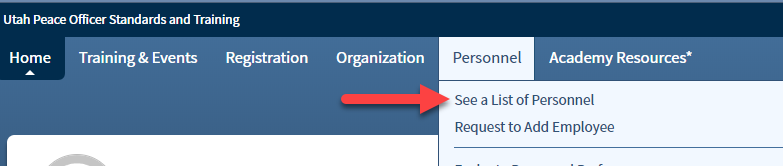
From the top navigation, select: Personnel > See a List of Personnel. Note: If you do not see this option, contact POST at [email protected] to establish the correct permissions on your account.
- Next to the employee name you wish to separate from your agency, click the three dots, then “Update Employment.”
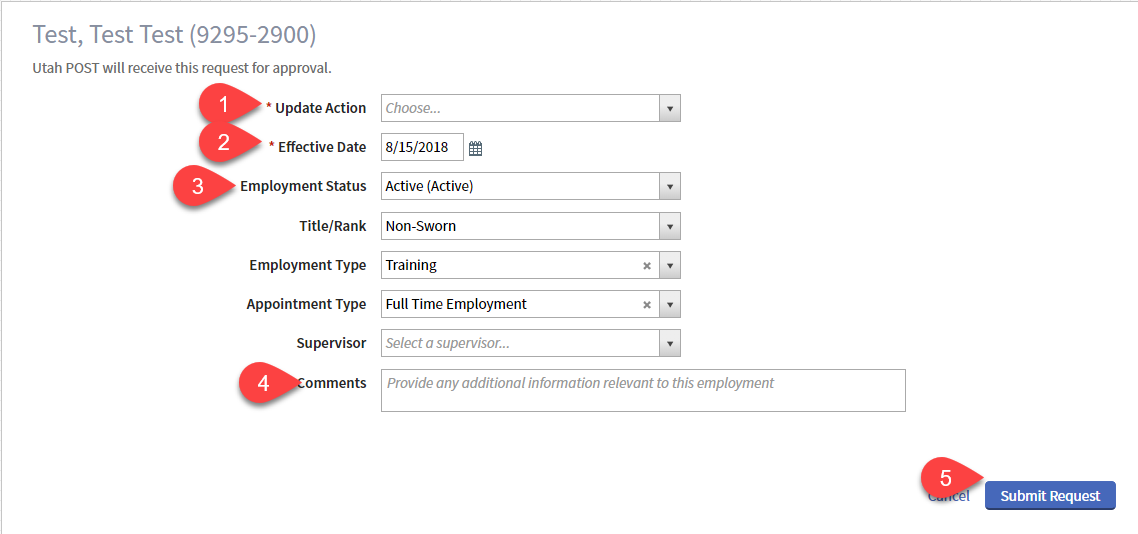
- 1 -Modify the update action to: Separation.
- 2 -Enter the last date of employment in the effective date
- 3 -Change employment status to either: Separated (Inactive) or Separated – Investigation Requested (Inactive).
- 4 -If Investigation requested, provide the contact information of whom the investigators should contact regarding the request. Do not include circumstances.
- 5 -Click “Submit Request.”
- Note: Leave all other fields the same. Do not enter a supervisor.
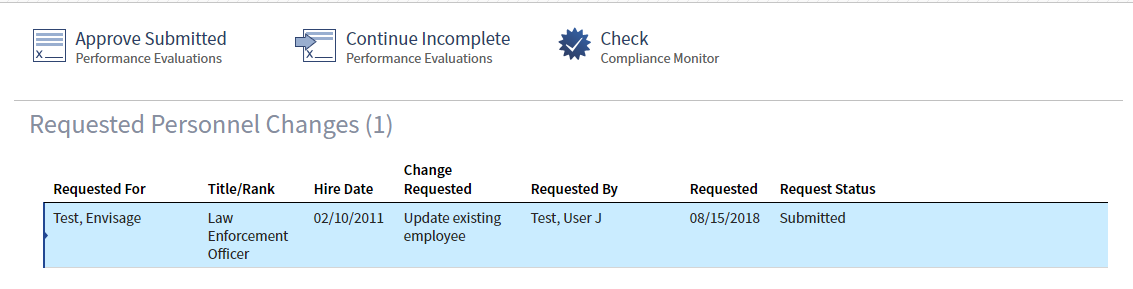
After pressing submit on your Personnel tab you will see the change has been submitted.